Get the Tably POS.Windows, Android and iPad.

One POS on every device: orders, tables and tickets stay in sync between them.

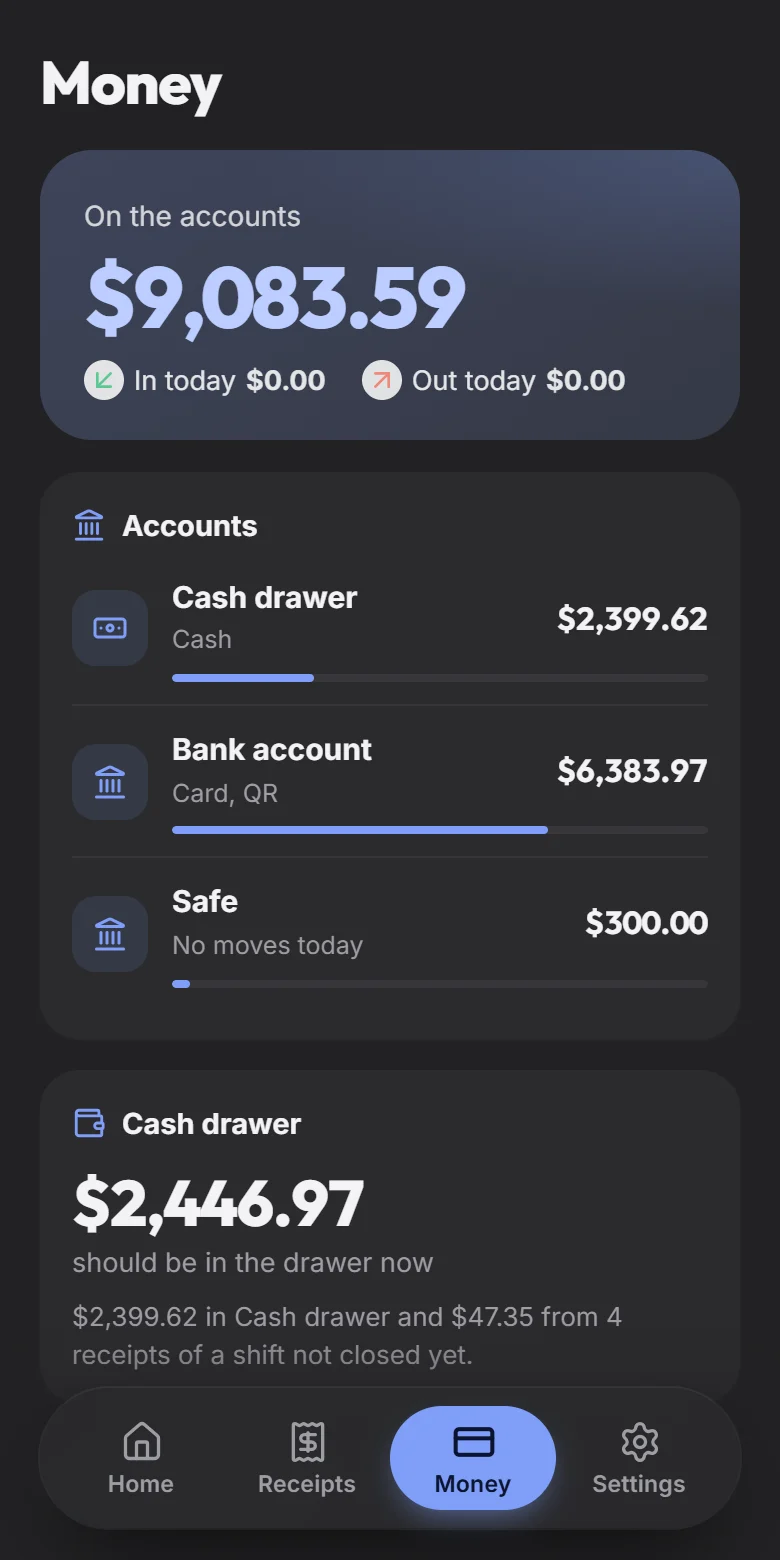
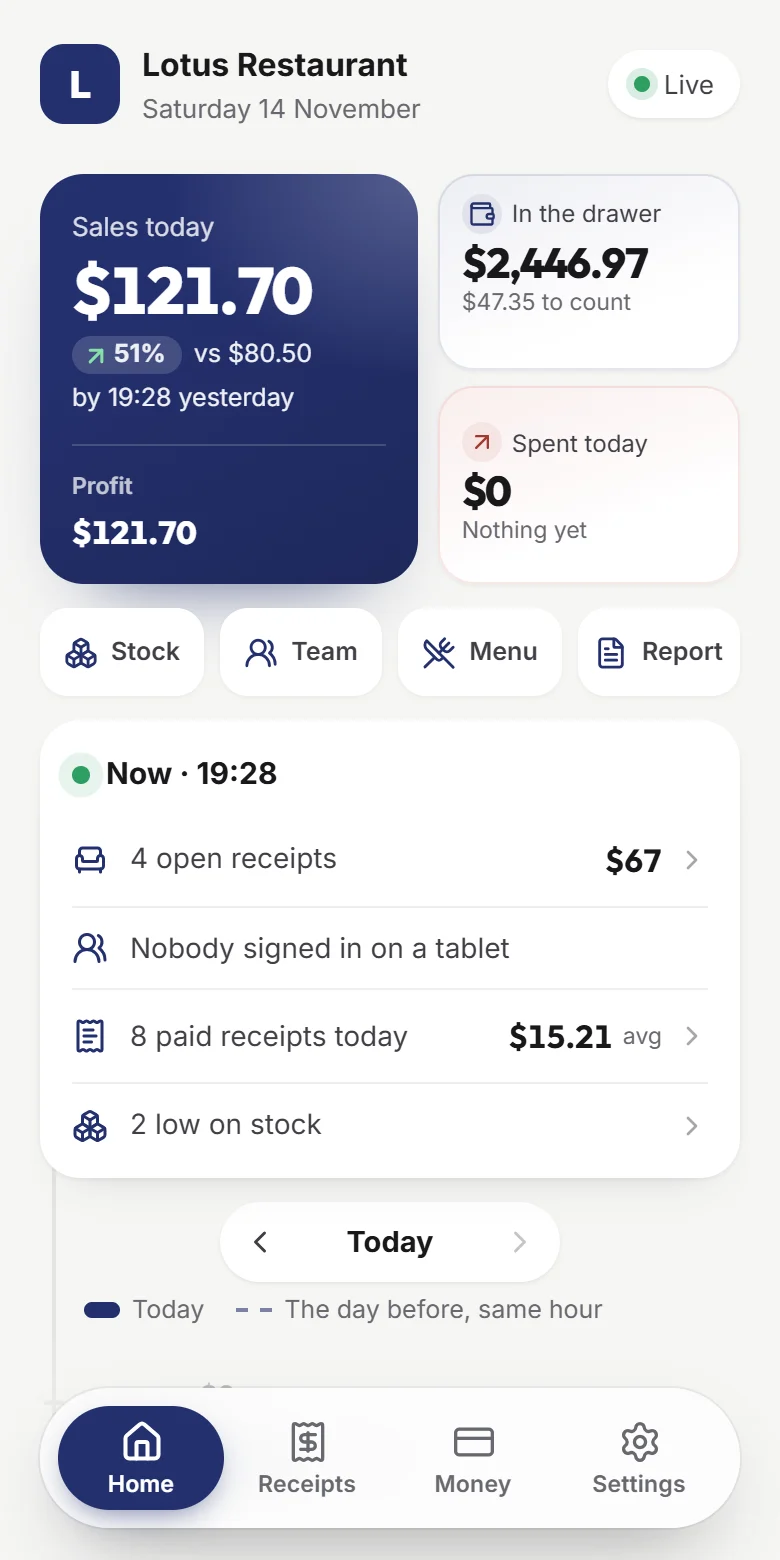
New: Tably Pulse for owners — your restaurant on your phone

Tably POS

For the floor, the counter and the kitchen

Windows

For the counter or the office: the POS full screen, receipt printers and the cash drawer.

Checking…
Needs
Windows 10 or 11, 64-bit

Android

Tablets and phones for waiters. Prints over Wi‑Fi, Bluetooth or USB and works without internet.

Checking…
Needs
Android 7 or newer

iPad

Nothing to install: the POS opens from the home screen like an app.

Open the POS
Needs
Safari on the iPad

Set up on Windows

  1. Run the installerOpen tably-pos-setup.exe. Tably POS installs and opens by itself.
  2. Sign inUse the email and password of the restaurant’s owner or a manager, then choose the restaurant.
  3. Choose which tablet it isPick it from the list (add tablets on the website in Access → Tablets), then waiter tablet or kitchen display.
  4. Add your printersUSB and network receipt printers and the cash drawer: Printers & devices in the app.

Windows may say it protected your PC — it does this for new apps from smaller makers. Choose More info → Run anyway; it asks only once.

  • Updates itselfNew versions of the POS arrive by themselves.
  • Your Tably accountThe same login as the website; then the staff sign in with their PIN.
  • Keeps working offlineOrders are kept on the device and sent when the internet is back.
  • Prints for everyoneDevices with the app print tickets for iPads and browsers too.

Tably Pulse · for owners

Your restaurant in your pocket.

Today's sales as they come in, open tables, the money, stock and the team — on your phone, wherever you are.

  • Live, hour by hourToday against yesterday at the same minute, every shift close and how the cash came out.
  • Told when it mattersShift closes, cancellations, low stock, the day's summary at the time you choose.
  • On your home screenA widget with today's sales in your restaurant's colours, in any size.
  1. InstallOn your phone, download tably-pulse.apk and tap Install.
  2. Sign inWith your Tably account.
  3. Add the widgetHold the home screen → Widgets → Tably Pulse.

iPhone: open tablypos.com/pulse in Safari, tap Share → Add to Home Screen.

Questions about setting up? support@tablypos.com